Getting Started
There are three ways to set up OfflineMDM — choose the one that fits your situation. You only need to follow one of the options below.
Create a Work Profile Work Profile
Download and install OfflineMDM from the Google Play Store. Once installed, the app will create and manage an Android Work Profile on your device — keeping work apps and policies fully separated from your personal space. No device owner setup required.
Download on Google PlayScan the Provisioning QR Code New Device
On a factory-reset device, proceed through setup until the Wi-Fi step. Tap the screen six times rapidly to trigger the QR scanner, then scan the code for your preferred channel.
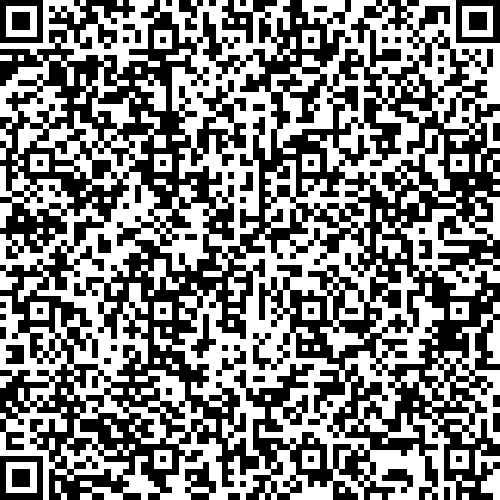
Stable Release
Recommended for most users. Fully tested and production ready.
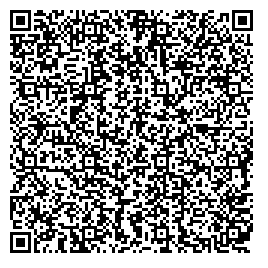
Beta Release
Early access to new features. May contain bugs — use with caution.
Join Beta on Google PlaySet Device Owner via ADB Existing Device
If the device is already set up, you can grant Device Owner permissions using ADB. Connect the device to your computer with USB debugging enabled and run the following command:
adb shell dpm set-device-owner com.rrivenllc.offlinemdm/.receivers.DeviceOwnerReceiver
⚠ The device must have no existing accounts added before running this command. Remove all Google accounts from the device first.